


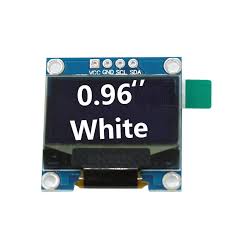
White, Blue and Yellow-Blue 0.96″ I2C 128X64 OLED LCD Display Module Arduino COM32 ,R24
DescriptionColor: whiteDriving Chip: SSD1306Pin Definition: GND: power ground VCC: power positive (2.8-5.5V) SCL: Serial Clock Line SDA: Serial Data Line Interface Type: SPI, I2CGetting started with the White 0.96″ I2C 128X64 OLED LCD Display Module This article shows how to use the SSD1306 0.96 inch I2C OLED display with the Arduino. We’ll show you some features of the OLED display, how to connect it to the Arduino board, and how to write textStep1: Hardware requiredArduino UNO or NodeMCU ESP8266OLEDJumper wireStep2: Connecting the HardwareConnecting OLED to Arduino UnoConnecting OLED to Nodemcu esp8266If you’re using other Arduino board rather than the uno, check out what are their SCL and SDA pins.Nano: SDA (A4); SCL(A5);MEGA: SDA (20); SCL(21);Step3: Setting up the libraryTo control the OLED display you’ll need the “adafruit_GFX” library and the “adafruit_SSD1306” library. You can find both of this in Manage Libraries.Another Option: Installing the adafruit_GFX libraryClick here to download the adafruit GFX library. You should have a .zip folder in your Downloads folderUnzip the .zip folder and you should get Adafruit-GFX-Library-master folderMove the Adafruit_GFX_Library folder to your Arduino IDE installation libraries folderInstalling the adafruit_SSD1306 libraryClick here to download the adafruit_SSD1306 library. You should have a .zip folder in your Downloads folderUnzip the .zip folder and you should get Adafruit_SSD1306-master folderMove the Adafruit_SSD1306 folder to your Arduino IDE installation libraries folderFinally, re-open your Arduino IDEStep4: Upload the sample sketchYou can find an example scketch for testing the display.Edit line 35 and change0x3Dto0x3Cand upload the code to either NodeMCU or UNO.You can use also the following sketch which displays “FARANUX ELECTRONICS” message in the OLED display.#include <Wire.h> #include <Adafruit_GFX.h> #include <Adafruit_SSD1306.h> #define SCREEN_WIDTH 128 // OLED display width, in pixels #define SCREEN_HEIGHT 64 // OLED display height, in pixels // Declaration for an SSD1306 display connected to I2C (SDA, SCL pins) Adafruit_SSD1306 display(SCREEN_WIDTH, SCREEN_HEIGHT, &Wire, -1); void setup() { Serial.begin(115200); if(!display.begin(SSD1306_SWITCHCAPVCC, 0x3C)) { // Address 0x3D for 128x64 Serial.println(F("SSD1306 allocation failed")); for(;;); } delay(2000); display.clearDisplay(); display.setTextSize(1); display.setTextColor(WHITE); display.setCursor(0, 10); // Display static text display.println("FARANUX ELECTRONICS!"); display.display(); } void loop() { }Step5: Testing the circuitAfter uploading the code, this is what you’ll get in your OLED:If your OLED display is not showing anything:Check that the OLED display is properly wired to the ArduinoDouble-check the OLED display I2C address: with the OLED connected to the Arduino, upload this code and check the I2C address in the Serial MonitorYou should change the OLED address in the following line, if necessary. In our case, the address is 0x3C.if(!display.begin(SSD1306_SWITCHCAPVCC, 0x3C)) { Package includes: 1×Monochrome 0.96 Inch I2C 128X64 OLED Display
Share on: